
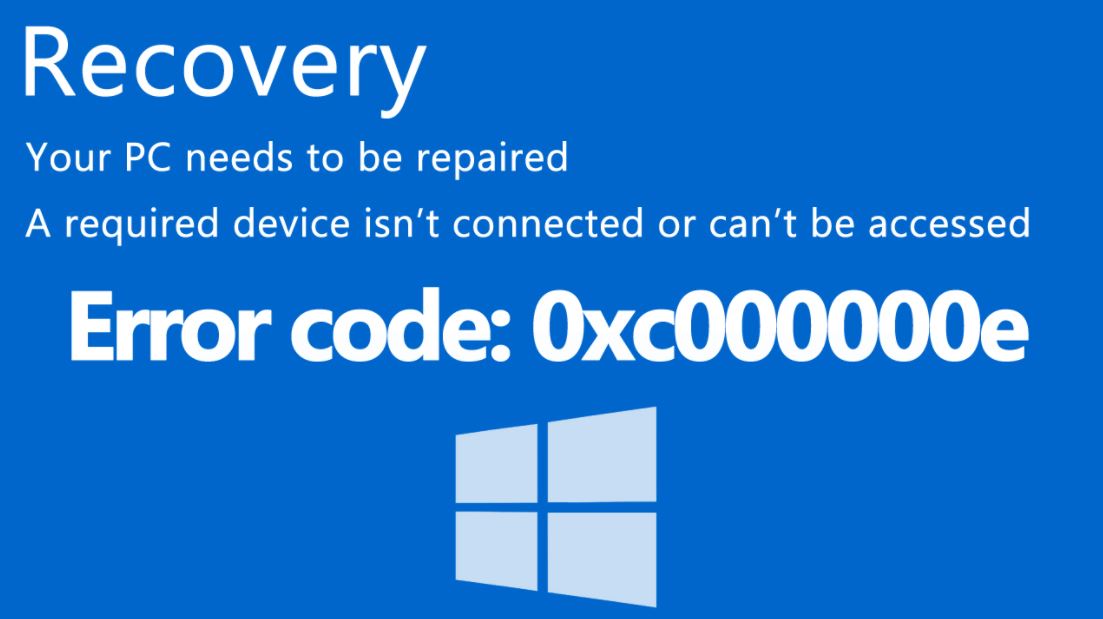
There are so many errors you are likely to encounter when using your Windows device. Blue screen error, also referred to as Blue Screen of Death (BSOD), is a common error you are likely to encounter. In most circumstances, the blue screen 0xc0000001 occurs at a system startup. This means that it usually leads to the corruption of Windows 10 files. As you can imagine, it is a problem that requires advanced solutions that we will show you below.
Install an Antivirus
Many times the blue screen error appears when malicious software deletes important files from the system. Given this, it is best to install antivirus software to protect yourself. Take your time to identify some of the best anti-viruses for Windows 10, which will perfectly fulfill the task.
Power Protection
 Another possible cause for the 0xc0000001 error is abrupt power outages. An unexpected power failure can cause specific files to be erased from the system if the computer is in use. Given this, the best thing to do is to prevent the equipment from being forcibly turned off.
It may seem inevitable, but there are certainly some components that can help us. Undoubtedly, one of them is the UPS, a tool that allows you to shut down your computer after a blackout, protecting its integrity and information.
Repair Windows Startup
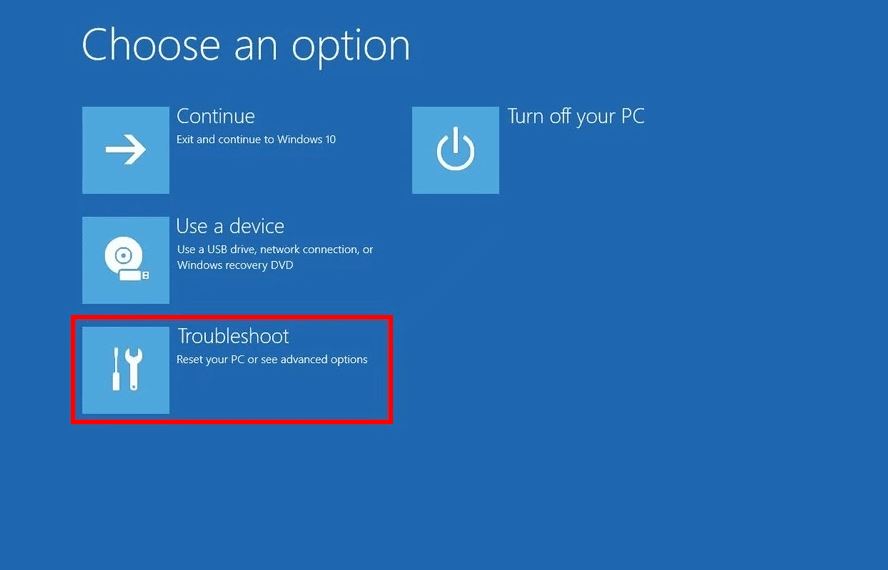
On many occasions, having the error 0xc0000001 means that Windows recovery is necessary. In other words, this error many times makes it necessary to use the recovery environment. Fortunately, the latest versions of Windows are very capable of recovering the system. Even so, it will be necessary to have a working computer.
Before you begin, you need to download the Windows 10 Media Creation Tool and create the pendrive with at least 8GB of space. Once the file is downloaded, run it. The system will ask you to select the appropriate option. Now, choose “Create installation media (USB Flash drive, DVD or ISO files) for another PC,” after that, click “Next.”
 Windows will ask you to choose the medium to begin the process. This time you must select “USB flash drive” and click on next. After the above, downloading the files necessary for the installation/recovery of Windows will begin. This process can take time, but this will depend on the speed of your internet connection.
Preparing Your PC for Recovery
You need to configure the BIOS to boot from USB. After the computer boots from the USB device, the Windows install/repair program will start. Select “Repair the computer.” Doing this will display the Windows recovery environment. Select “Automatic Repair.” After that, you have to wait until the installation repairs the operating system. On the other hand, if the repair cannot be done for some reason, you may have to install Windows 10 from scratch.